Getting Started
Basic Setup (Hardware)
Tip
Some items on this page have a built in check box next to it. Feel free to use this as you setup for Church.
Verify you have the following devices powered on and displaying it’s respective screens:
Layout
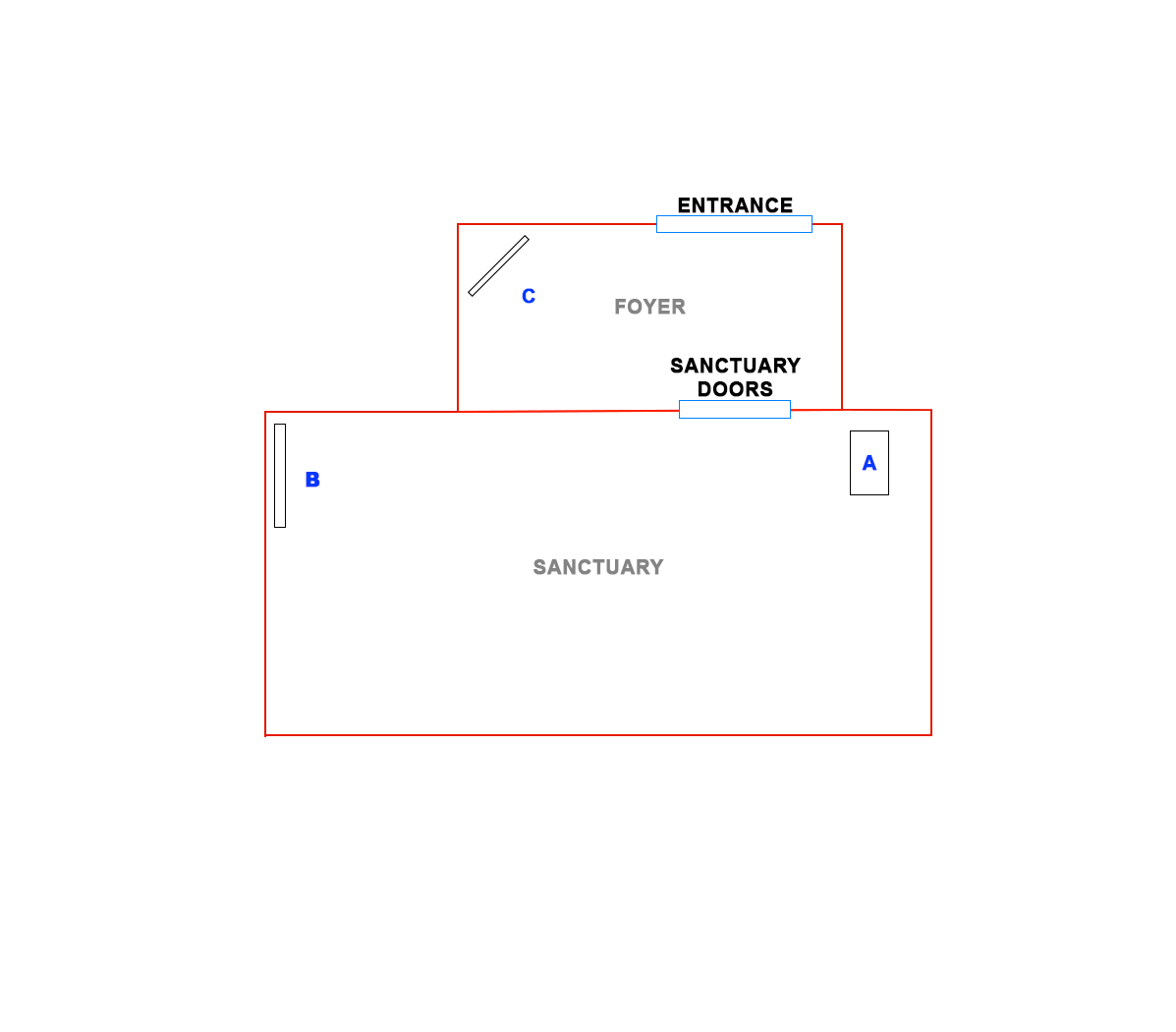
Section A
Laptop
Monitor
Sound System
Section B
Projector Screen
Projector (Use Remote)
Section C
Foyer TV (Remote)
Power Locations
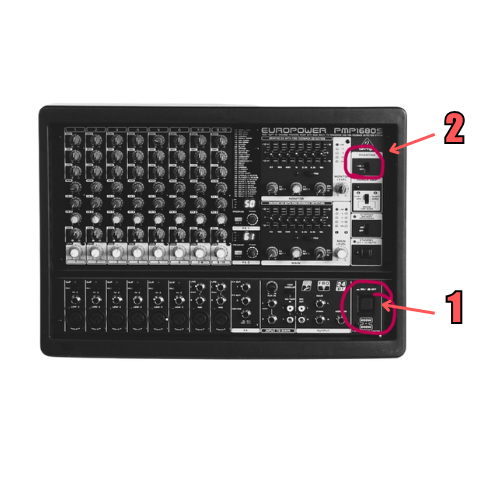
Located in section A:
Push in for main power to sound system.
Push up (+48 v Phantom Power) to engage power for pulpit mic, and output for live audio.
Warning
Do not engage Phantom Power when pianist is wearing in ear monitor. When Phantom Power is engaged for the first time an audible “pop” is peaked at high volume through monitors.
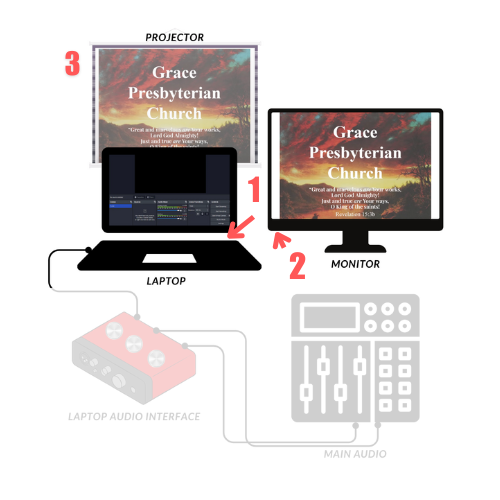
Located in section A & B:
Press power button on if laptop is blank and or no displays are engaged.
Turn on monitor power
Remote for projector is located in section B inside the pulpit. To use: point remote towards projector from inside pulpit, then press “power on”. Wait ~2 minutes for screen to display.
Next to pulpit is the white screen itself. Use ⬇⬆ controls on adjecent wall to lower screen.
Note
There is a power switch located behind the projector screen which may need to be flipped to enable power for projector.
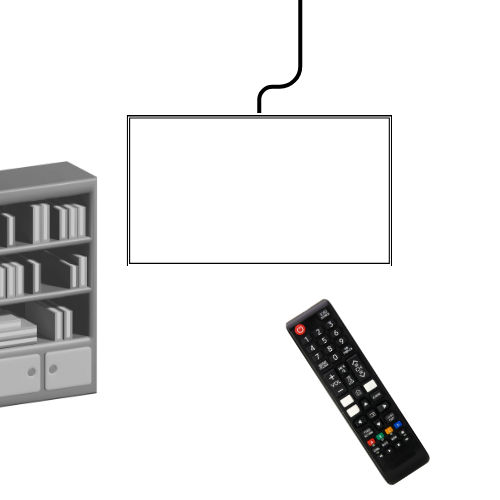
Located in section C:
Use remote found on bookshelf to turn on Foyer TV, or hold the button below the SAMSUNG logo
Basic Setup (Software)
Note
- I’ll be reffering to basic Windows elements like the “start” button and “taskbar”. Please refer to this for guidence.
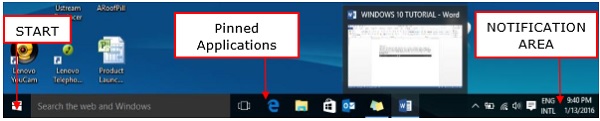
After initial boot up of the laptop and steps are followed above, confirm the laptop has the following applications running at the bottom taskbar:
OBS Studio
FreeShow
If none of the above programs aren’t visible in the taskbar:
Press the Windows key on your keyboard, or hit the start button on the taskbar.
Type the name of the missing program (like “OBS Studio” or “FreeShow”)
Click the program when it appears in the search results to launch it.
Slideshow setup
blank for now