Software
This page contains all relevant info to each program used on the main laptop. It will not be fully comprehensive on how to use the software as there are better documentation on specifics on their respective sites.
OBS Studio

OBS Studio offical documentation
OBS Studio is our primary software for broadcasting GPC live streams and managing the foyer TV replay.
Before using OBS Studio for GPC purposes, I recommend familiarizing yourself with the software’s basic features and interface. For newcomers, I recommend starting with this introductory tutorial to learn the essential controls and set up your first broadcast.
Audio
OBS Studio serves two primary use cases when it comes to audio:
Live stream
Foyer live replay
The live stream audio is fed in through from the USB audio interface, which OBS uses as the main source of audio.
The foyer live replay is utilizing a feature called audio “monitoring” in Audio Mixer - Mic/Aux → ⋮ → Advanced Audio Properties which, feeds the live stream audio into the computer’s speakers.
Note
The speaker that is set in the computer settings should be set to the HDMI output reffered to as “Samsung TV”, which is the foyer TV. see Audio Wiring for more information.
Streaming
In OBS Settings → Stream, I’ve configured OBS to connect with SermonAudio’s restreaming service. This is really useful because it lets us broadcast to multiple platforms simultaneously through a single stream setup.
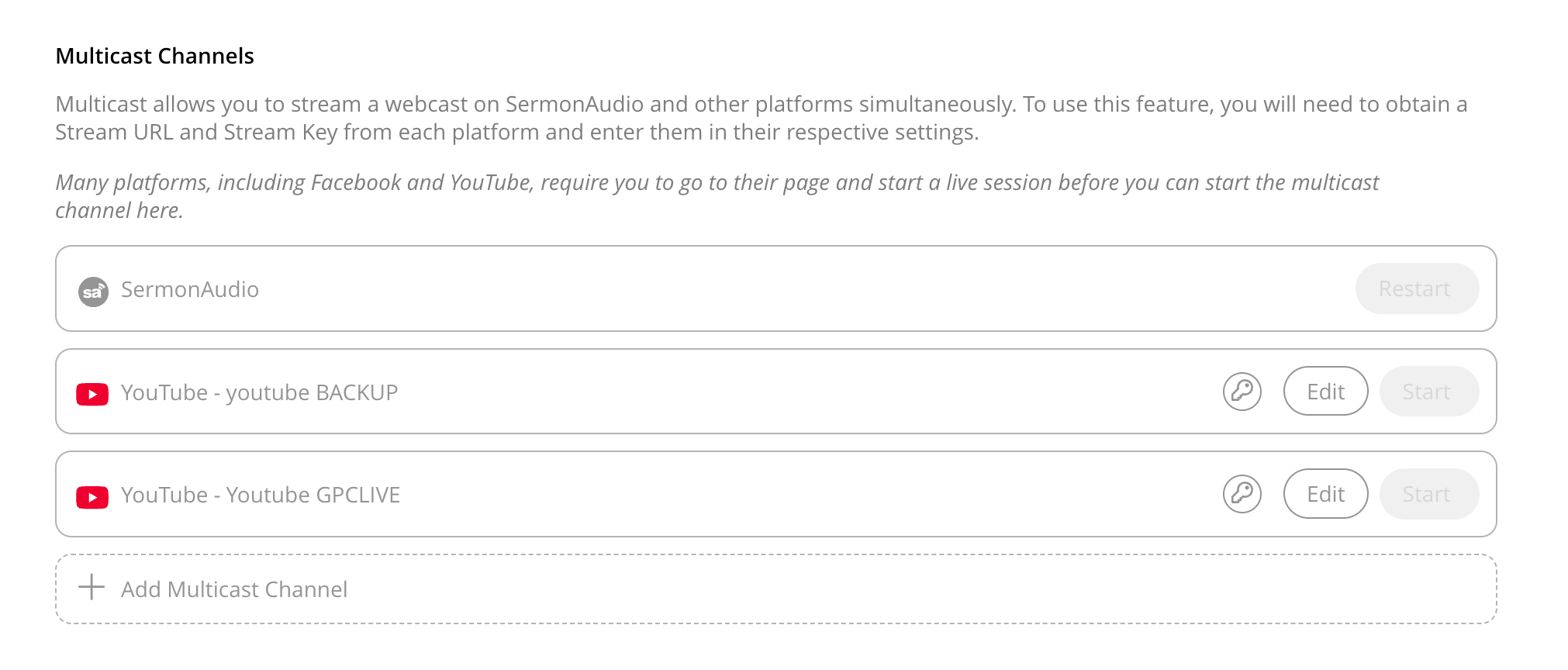
Here’s what that means in practice: When we stream through SermonAudio’s platform, we can automatically broadcast to several different sites at once, including our @GPCRedding YouTube channel. You can see all our active streaming destinations in the SermonAudio dashboard
If you’d like to see how this works, check out SermonAudio’s demonstration video of their restreaming feature.
Scenes
Scenes in OBS are different views in which the Live Stream can see the content. A couple different scenes we have setup in OBS are
Slides, which displays the slideshow on the livestream, and the webcam in the corner. Best used during music.
Wide, which shows only the camera video and is the most used scene the stream will show.
Zoomed Pulpit, which crops in the camera, intended to be used when zooming in the camera. See Camera Operating for more about using the camera.
FreeShow

Stream Deck (& Companion)

Companion (BitFocus) Documentation
blank for now